Lesson 5: Scan receipts and costs in BoekBrug
14 July 2026 · 1 min read · by BoekBrug
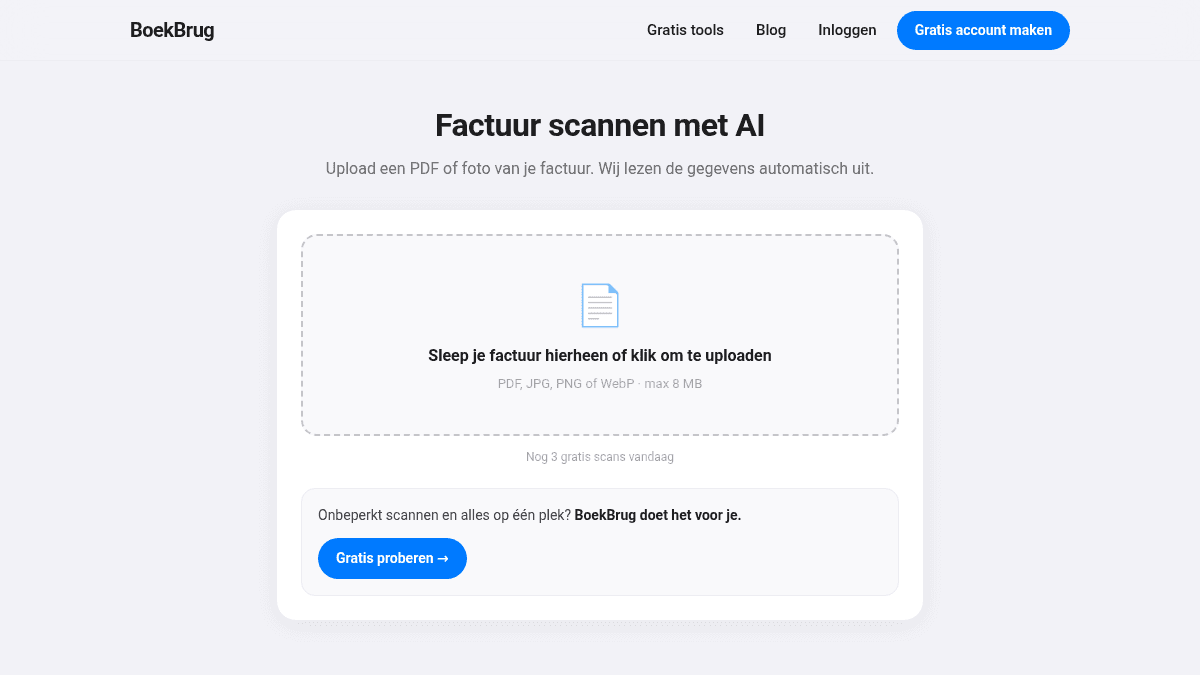
Tracking costs lowers your profit and therefore your tax. In BoekBrug you record a receipt in seconds.
What you learn
Scan and process a receipt or cost invoice.
Steps
- Click + Add and take a photo or upload a PDF of your receipt or cost invoice.
- BoekBrug automatically recognises whether it's an invoice, receipt, bank statement or document, and reads the supplier, amount and VAT.
- Go to Incoming invoices. Your receipt is there ready to check — a receipt is never booked as paid automatically.
- Check the amounts and confirm: mark as paid (bank or cash) or leave it as an outstanding cost.
Tip
Pay in cash sometimes? Record those expenses (and income) in the cash book under Cash. That way your cash matches the rest of your admin. Always keep receipts — read why in Keeping receipts as a freelancer.
Done? Continue to Lesson 6 — Import your bank statement.