Lesson 3: Create and send your first invoice in BoekBrug
14 July 2026 · 1 min read · by BoekBrug
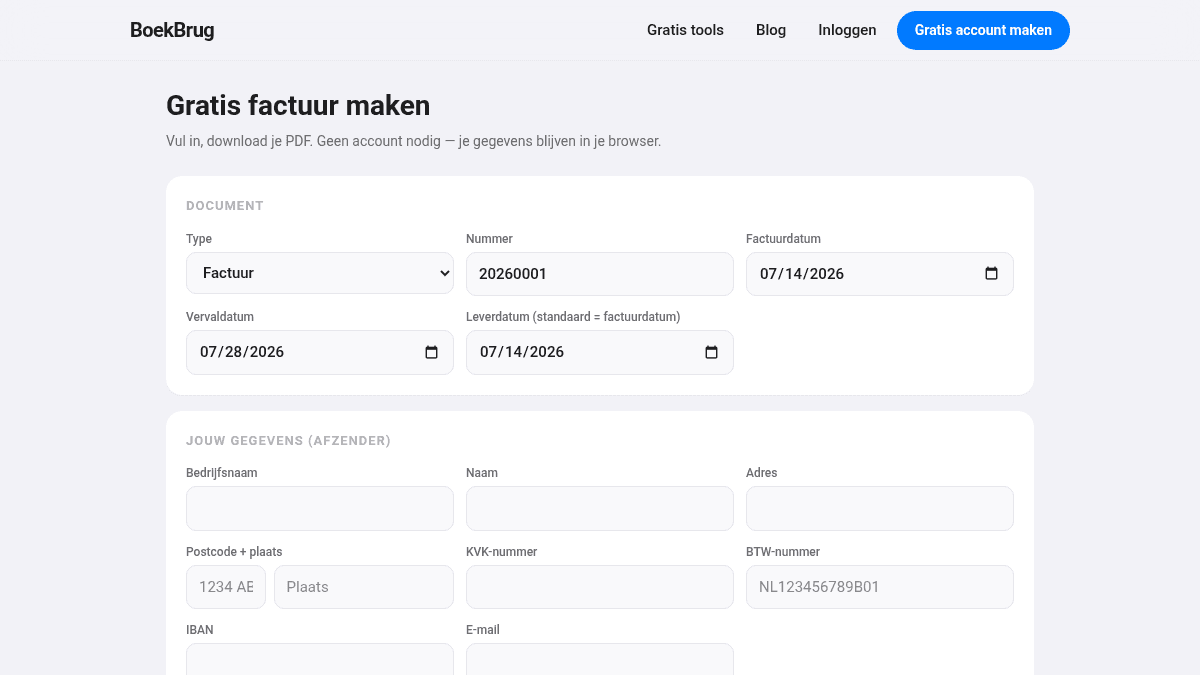
Time for the real work: your first invoice. In a few clicks you have a tidy invoice that meets the rules.
What you learn
Create, check and send an invoice.
Steps
- Go to New invoice.
- Pick your client (start typing — they appear from your list) or enter the client manually.
- Add invoice lines: description, quantity, price and the VAT rate per line (21%, 9% or 0%).
- Check the total with and without VAT.
- Click save and send. BoekBrug now assigns the correct, consecutive invoice number automatically and emails the invoice as a PDF to your client.
Tip
Not ready to send? Save it as a draft and send later. You can also make it first as a quote and convert it to a real invoice with one click (more in the extra lesson on quotes).
Want to work faster? On your home screen you can describe in plain words what you did ("send 4 hours of consulting to client X") and let the AI pre-fill the invoice.
Done? Continue to Lesson 4 — Get paid.